![kb_logo.svg]](https://www.talentdesk.io/hubfs/kb_logo.svg)
On TalentDesk “Vendors” refers to any organizations or agencies who collaborate with client organisations to deliver work through their own teams. This guide explains how you can onboard your team, assign work, and ensure efficient project delivery and payment.
1. Vendor Invitation and Onboarding
You will receive an email invitation to join TalentDesk. If it doesn’t appear in your inbox, please check your spam or junk folder.
Steps to Get Started
1. Click the “Accept Invitation” link in the email to create your account.
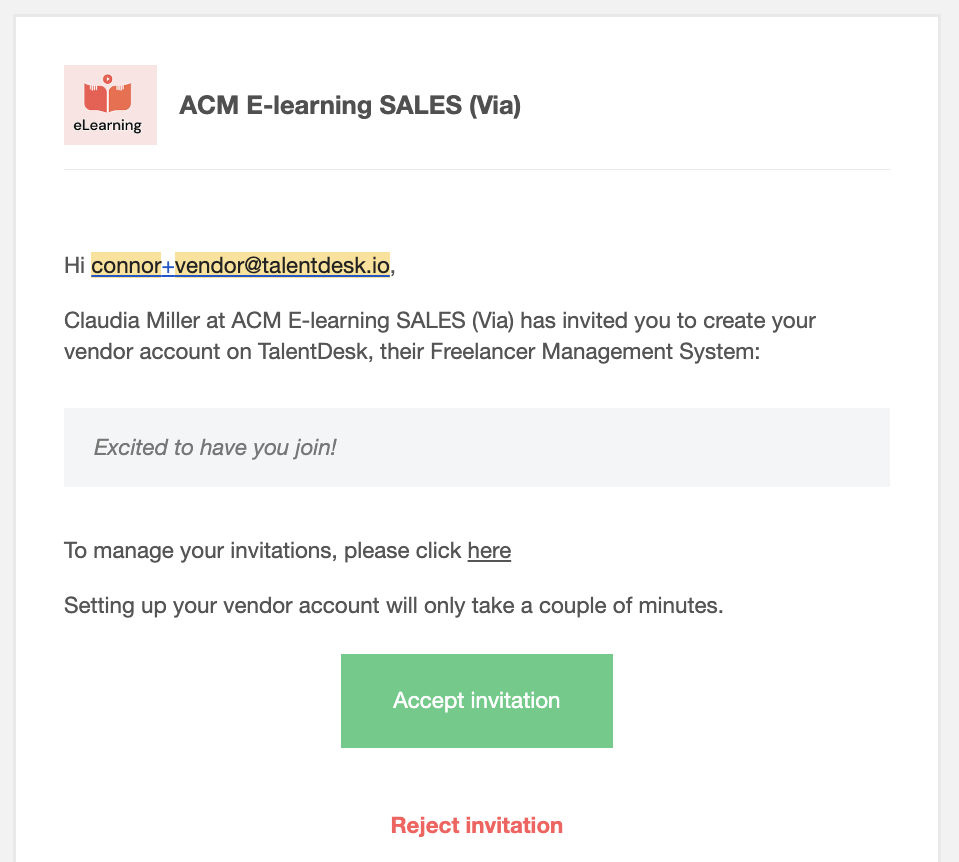
3. Complete the Get Started onboarding steps:
-
- Fill out your organization profile details.
- Review and sign any required legal documents (e.g., Partner Contract, NDA).
- Complete your invoicing and tax details.
- Add payment details (e.g., bank account, Payoneer, Wise).
- Fill out your organization profile details.
Once onboarding is complete, your Vendor profile will appear in your the Organisation’s TalentDesk workspace, making your organization eligible for opportunities.
2. Onboarding and Managing Your Team
As a Vendor, you can invite your own team members (technicians, contractors, specialists) to your TalentDesk account.
To onboard your team:
1. Navigate to Team > Invite Team Member.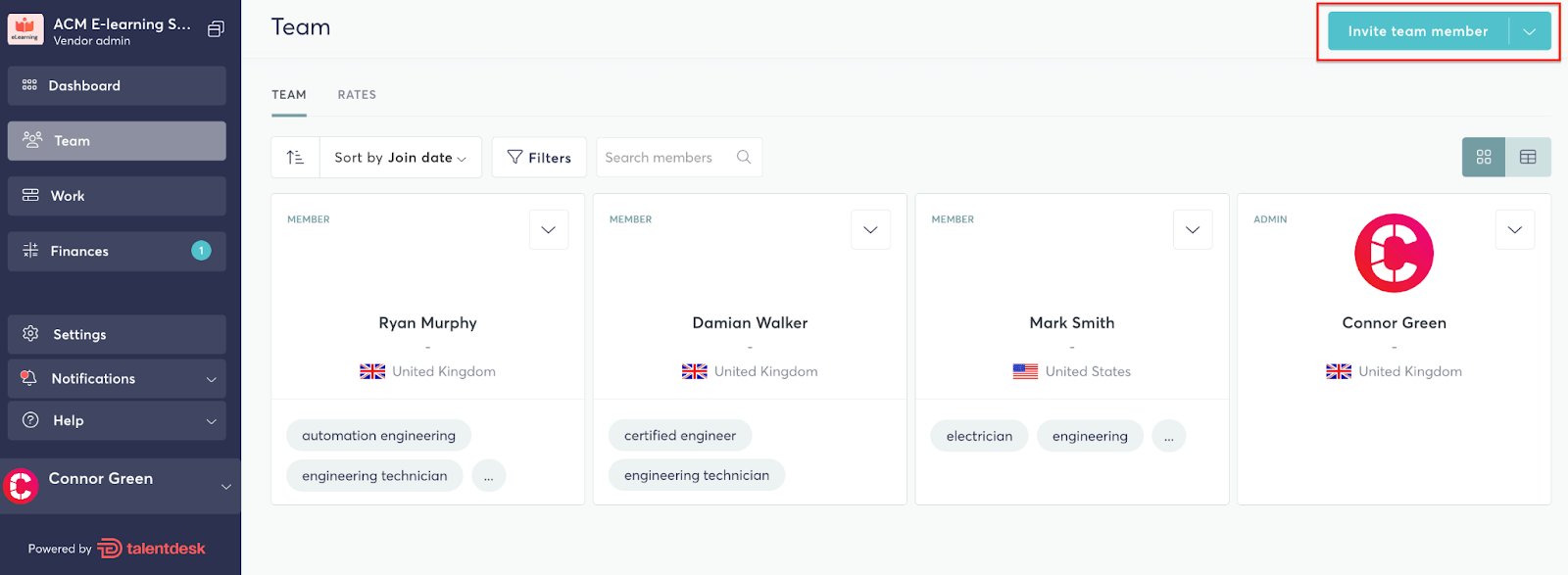
3. Select which Role the individual(s) you are inviting should have - Vendor Admin or Vendor Member.
4. Select the Rate that this should be assigned to this individual(s) (this can be changed at any time).
5. Click “Invite team”.
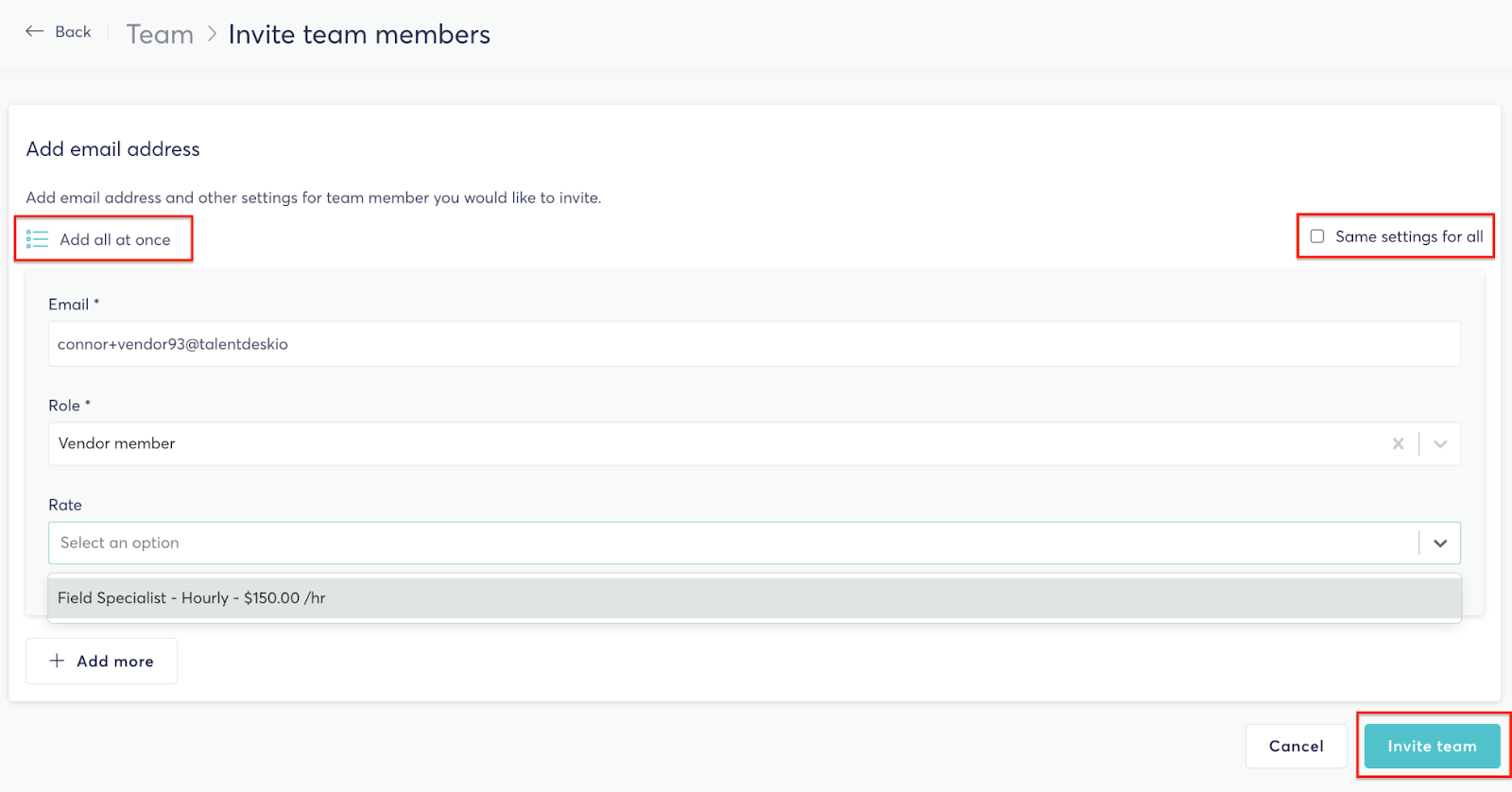
Each onboarded member will appear under your Team tab. You can manage their access, deactivate members, or update their rates at any time.
3. Applying for Opportunities
When a new Opportunity, you may be invited to apply.
How to Apply:
- You’ll receive an email and in-platform notification. You can also go to the Work>Opportunities section to and see any open Opportunities you can apply to.
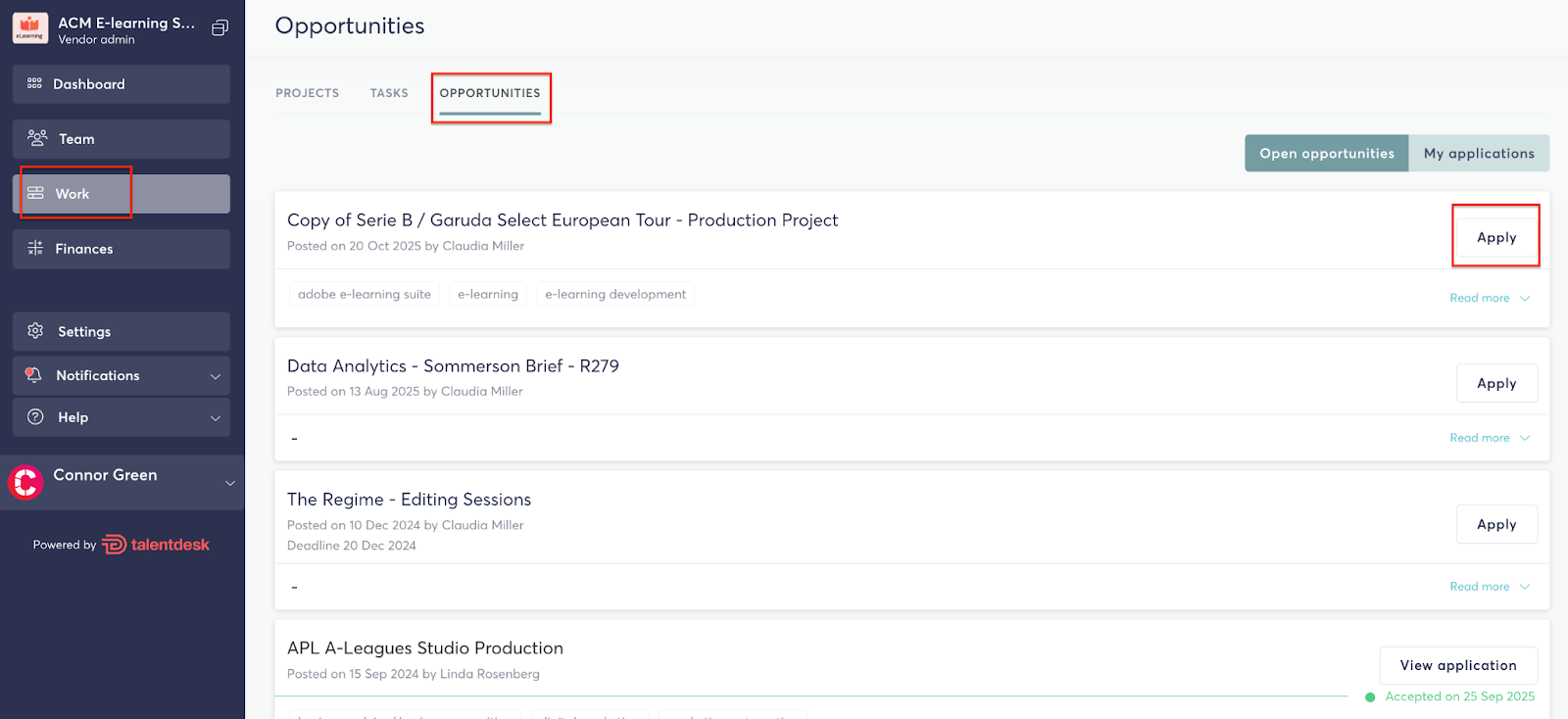
- Review the Opportunity details (brief, deliverables, deadlines, and rate structure).
- Click Apply to open the application form.
- Provide any requested information and attach your quote.
- Click Send.
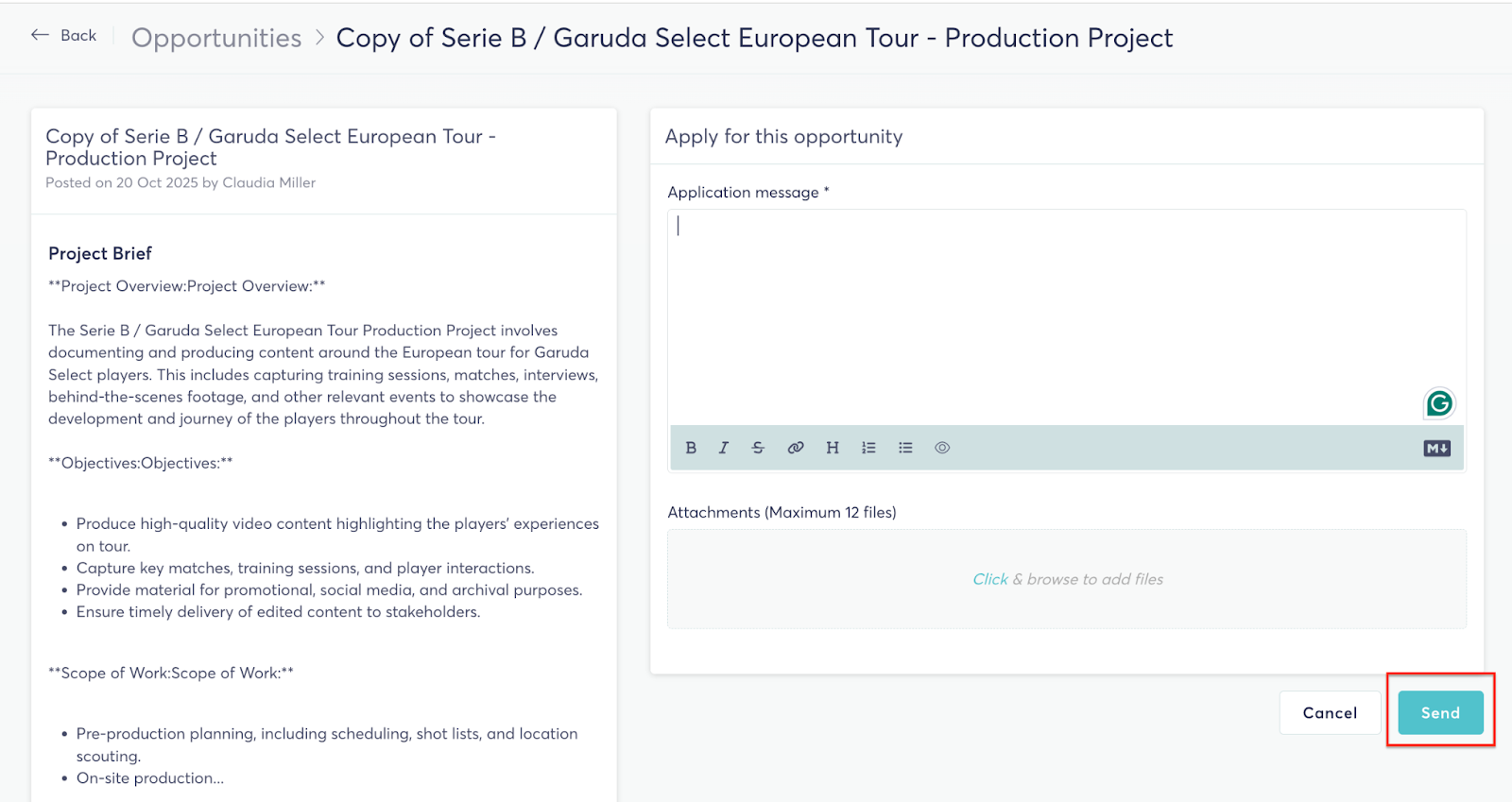
The Organisation will review your application and confirm whether your organization has been selected. Once approved, your Vendor account will be added to the Opportunity — and you can begin assigning your team to specific tasks associated to that Opportunity.
4. Assigning Your Team to Tasks
After being added to an Opportunity, one or more tasks may be created tasks associated with it. As a Vendor, you can assign these tasks to your onboarded team members.
To assign a task:
- Open the Opportunity and navigate to the Tasks tab.
- Select the relevant task.
- Click Assign to task.
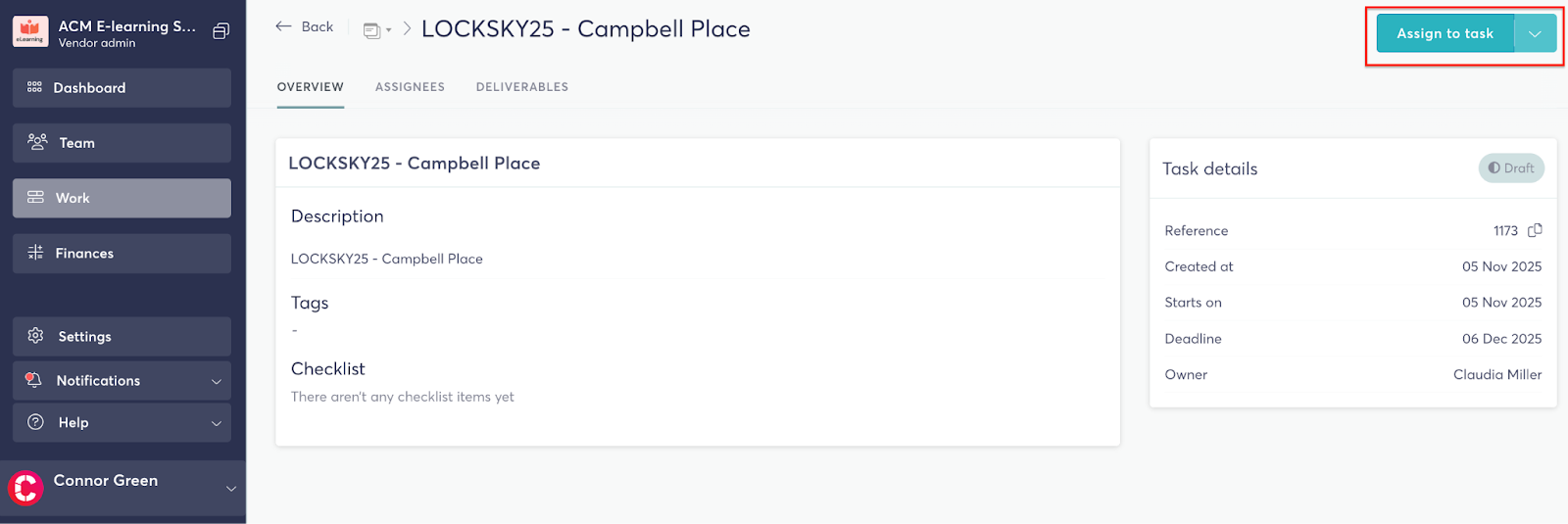
- Select one more of your onboarded team members you’d like to assign to the task.
- Click Next and then Assign
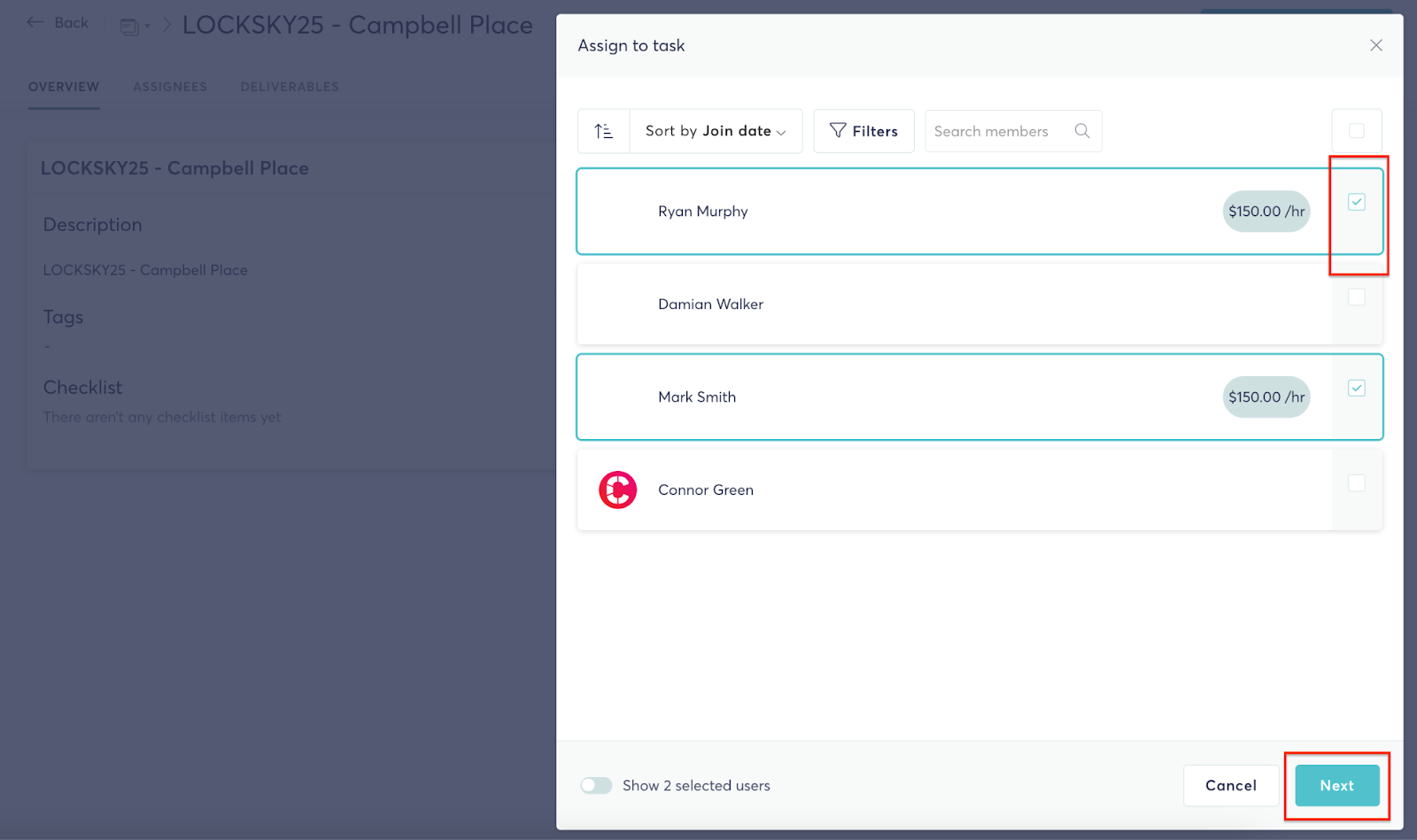
Each assigned member can view their task details (scope, deadlines, rates) and communicate directly with the Organisation via the Discussion tab.
5. Submitting Worksheets
Worksheets are how your team records their work for approval and payment.
To submit a worksheet your team members can either:
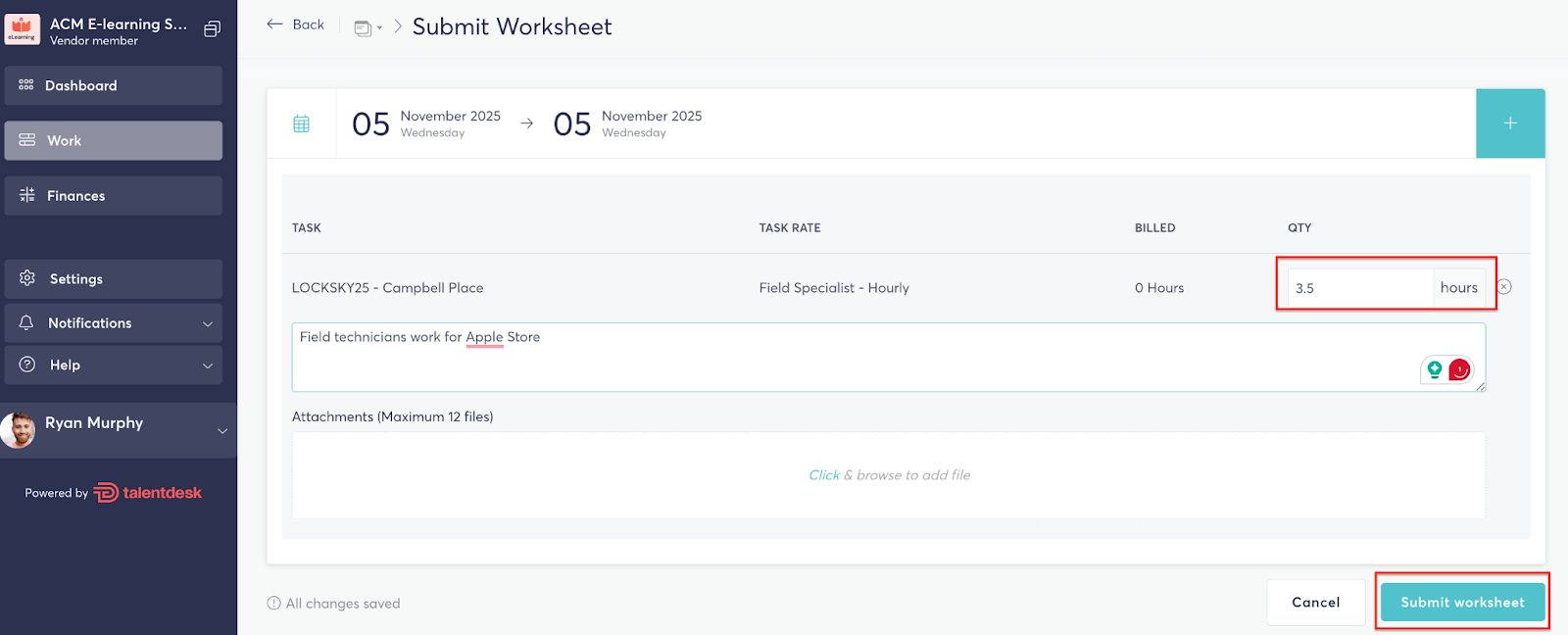
- Navigate to Finances > Worksheets and click Submit Worksheet.
- Or go to a specific task and select Submit Worksheet.
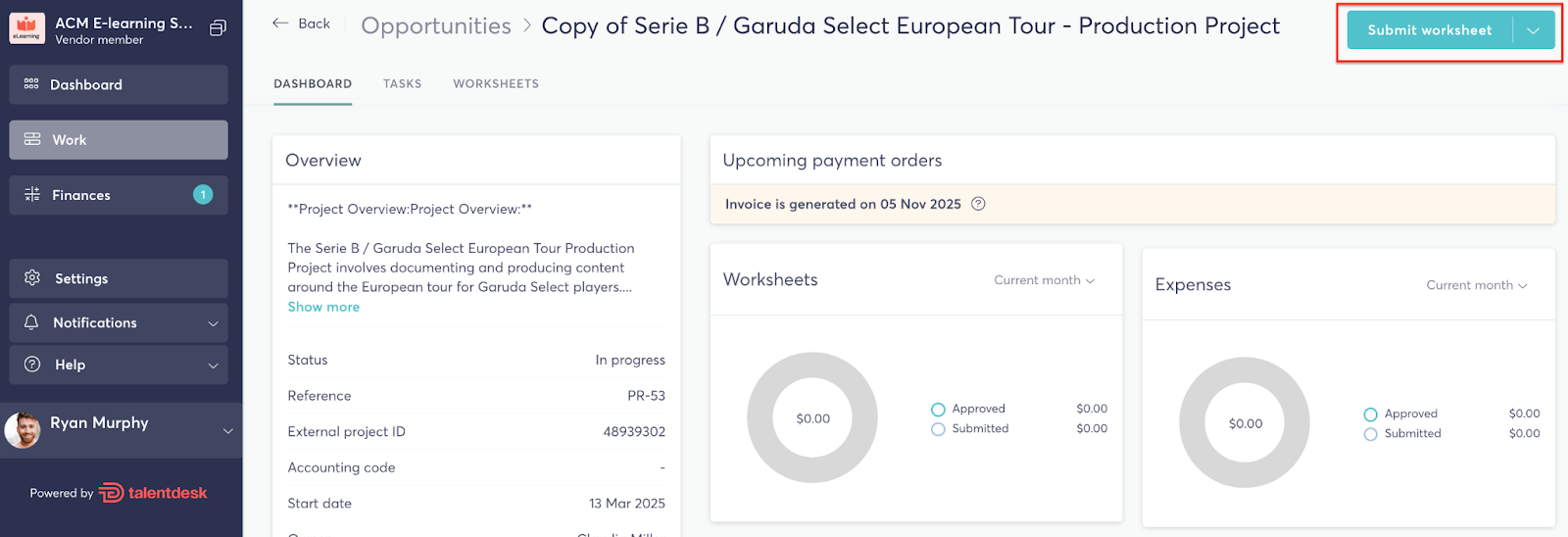
Steps for your team members:
- Enter the billing period, number of hours/days they’ve completed, and a summary of work completed.
- Attach any supporting documents if required.
- Click Submit Worksheet.
Worksheet Review and Approval Process:
To review your team members worksheets:
- Go to Finances > Worksheets
- Here you’ll see these a list of worksheets submitted by you team members
- If a worksheet requires review from you it will have a “Submitted” status, waiting for you to “Confirm” it
- You can either click “Confirm” directly from the Worksheet list view or;
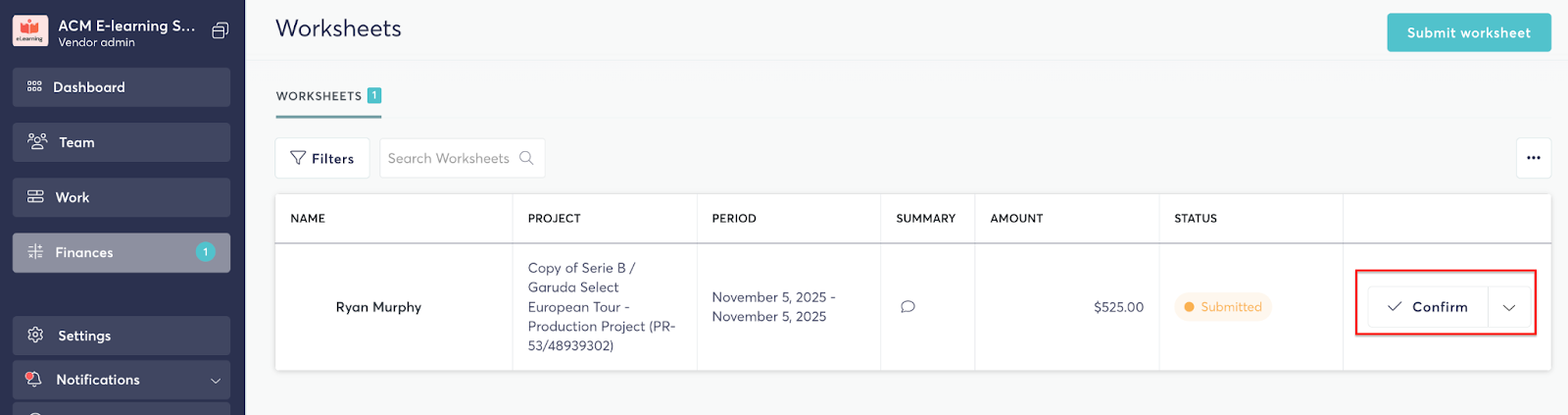
- You can click the dropdown next to the worksheet and click “View” to get the full worksheet details
- Here you’ll be able to review any details submitted including the amount. You can click to “Confirm” the worksheets, or “Reject”, or “Request amendment” if you want your team member to change anything and resubmit the worksheet
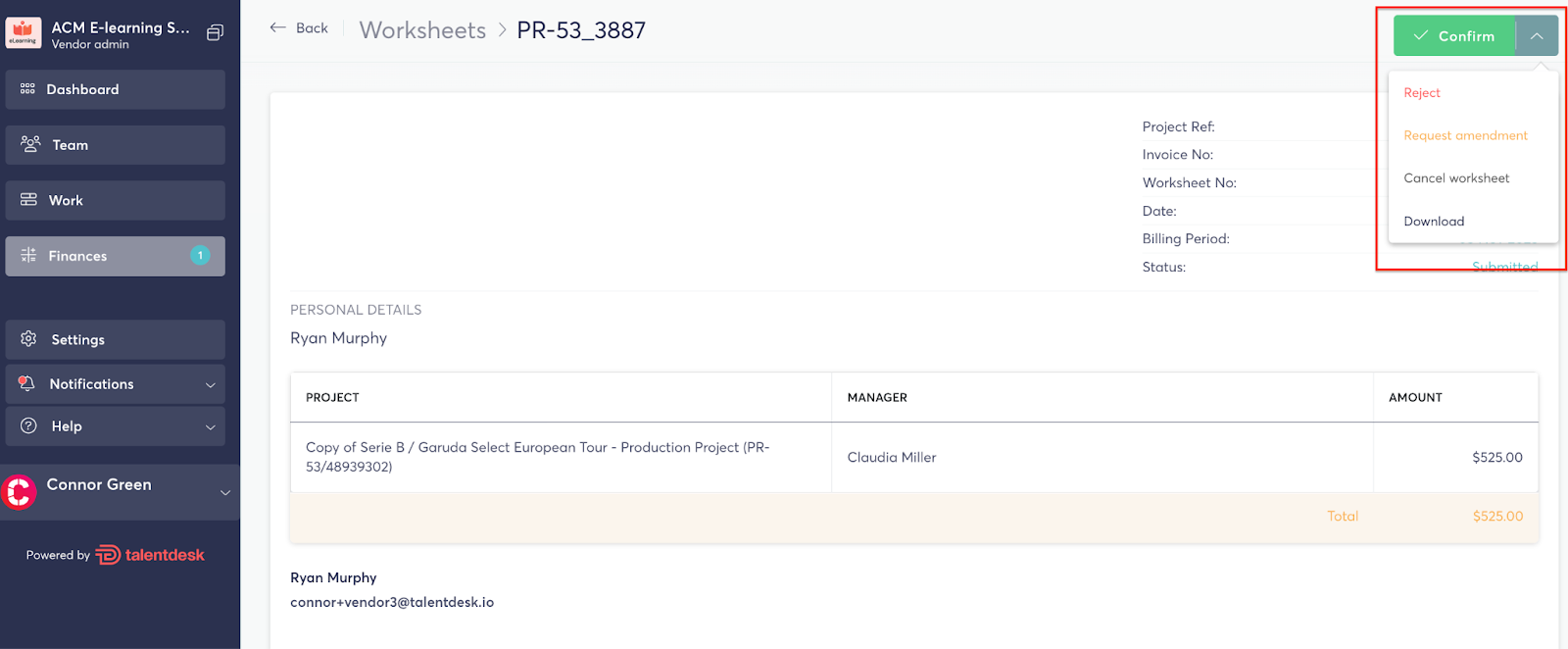
Once a worksheet is “Confirmed” by the Vendor Admin, it then goes to the Organisation for final review and approval.
6. Invoicing and Payment
After worksheets are fully approved, TalentDesk automatically generates invoices to the Organisation on your behalf on the Organisation's chosen invoice cadence.
Invoicing Cycle:
- Invoices are typically generated on fixed billing cycles (e.g., 1st, 8th, 15th, 23rd of each month).
- If these dates fall on a weekend or holiday, payments are processed on the next working day.
- You will receive an email once payment has been made.
Payment Methods:
- Bank Transfer (ACH or Wire)
- Payoneer or Wise
- Multi-currency options supported, depending on your region.
You can view all invoices under Finances > Invoices.
7. Communication and Support
For general help or technical issues:
- Use the in-platform Help & Support feature.
- Or contact TalentDesk Support via your workspace support link.