![kb_logo.svg]](https://www.talentdesk.io/hubfs/kb_logo.svg)
Enabling Broadcast Messages
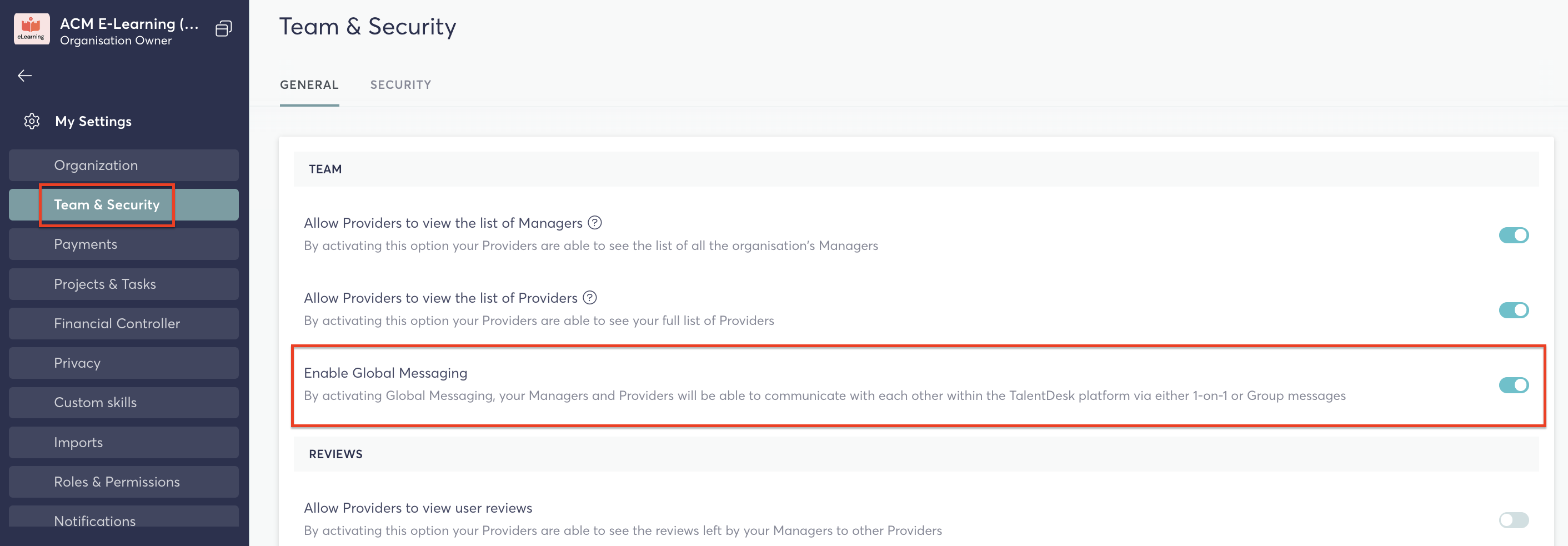
Broadcast messaging is part of the Global Messaging feature. Before anyone in your organisation can send or receive broadcasts, a Higher Manager must enable it in:
Settings > Team & Security > General
Toggle on Global Messaging to activate the feature. Broadcast messaging is enabled for all organisations by default.
Permission to Send
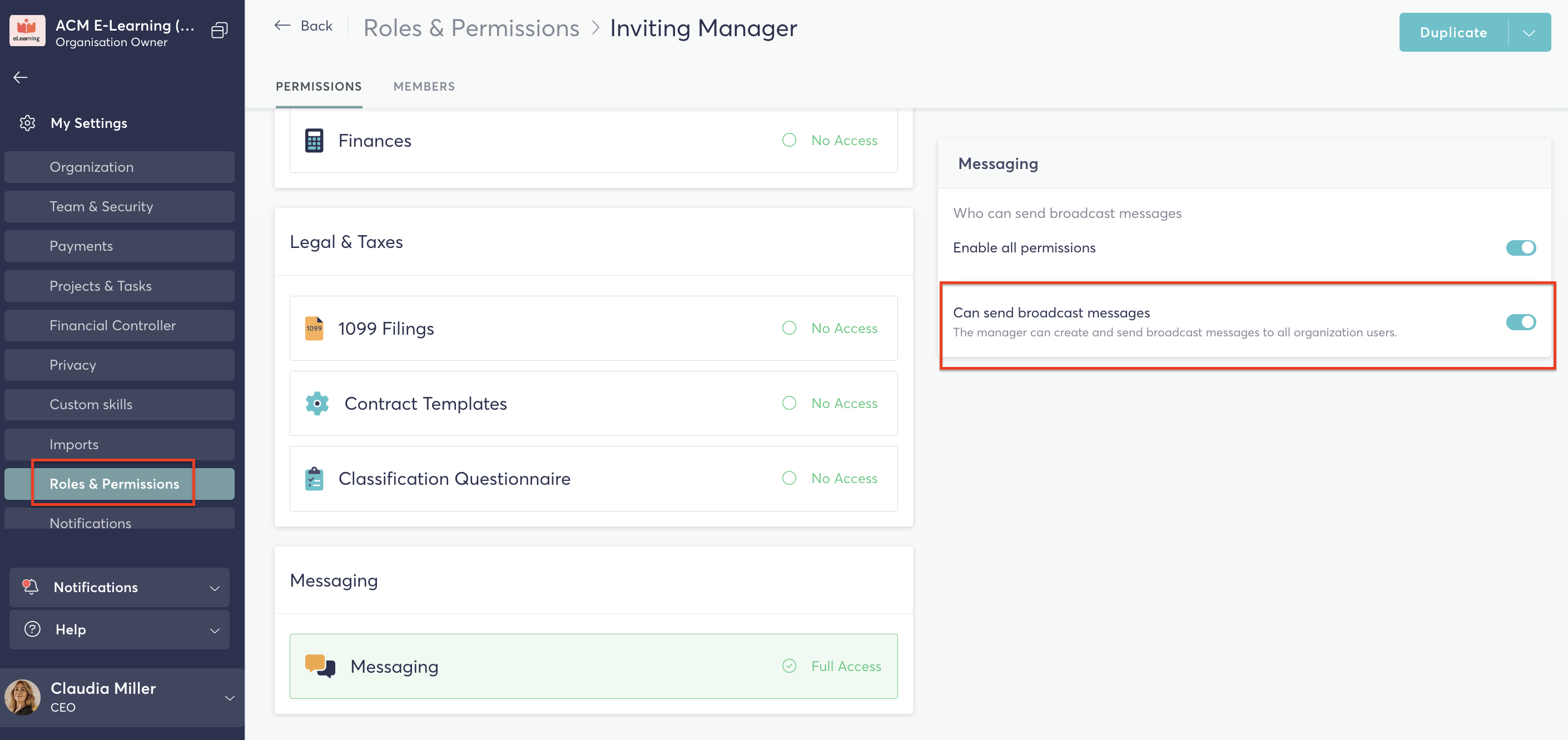
Sending broadcast messages is controlled by the Send broadcast messages permission.
The organisation owner can assign this permission to any role under:
Settings > Roles & Permissions
Users without this permission can still receive broadcasts but will not see the option to create them.
Creating a Broadcast Message
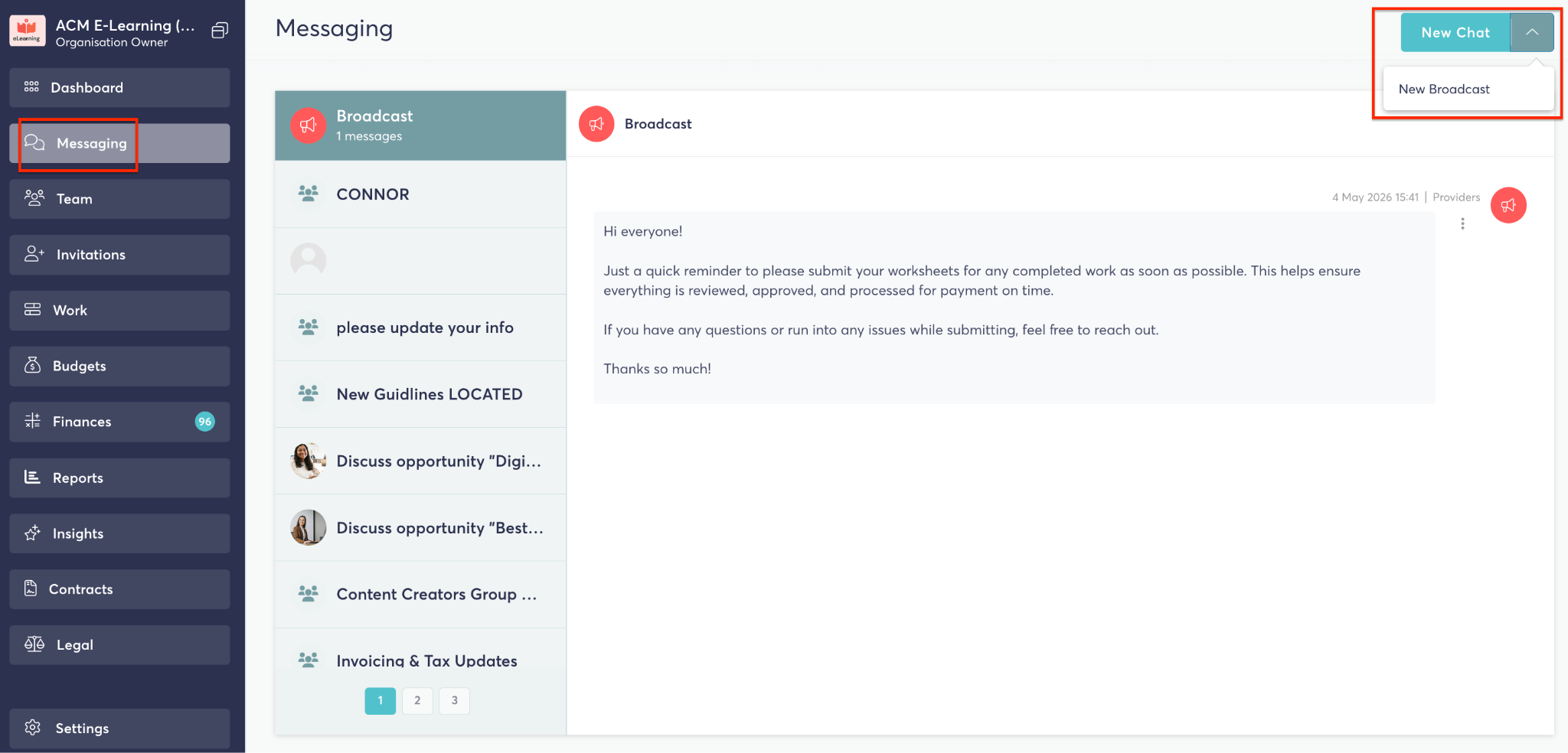
Users with the Send broadcast messages permission will see a New Broadcast button on their Messaging page.
To create a broadcast:
- Go to Messaging and click New Broadcast
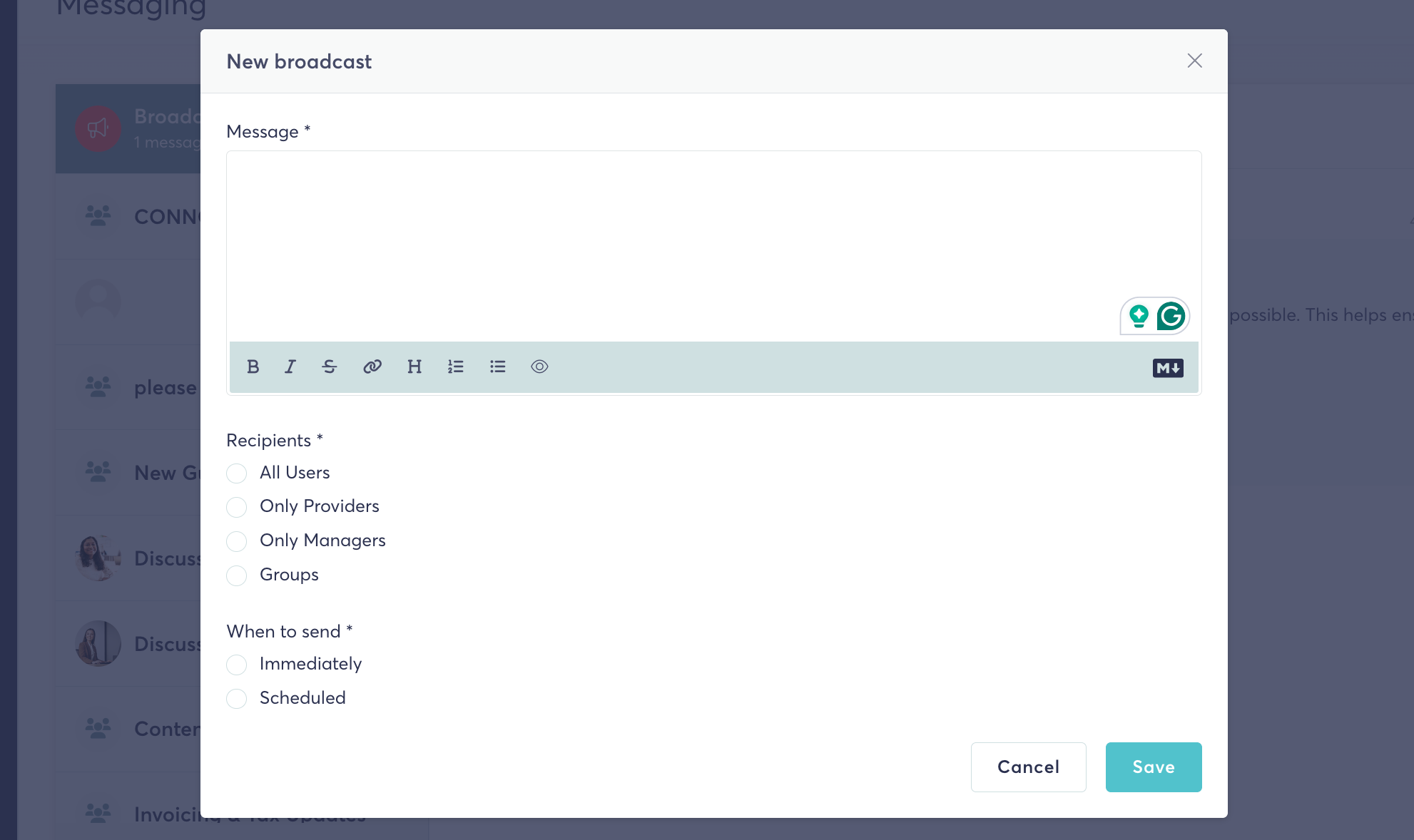
- Write your message in the editor (basic markdown formatting is supported)
- Select your recipients (see below)
- Choose when to send — immediately or at a scheduled date and time
- Click Send (or Schedule if sending later)
Selecting Recipients
When composing a broadcast, you can choose from the following recipient groups:
- All users — every active user in the organisation
- Only providers — all users with the provider role
- Only managers — all users with any manager role
- Groups — all users in one or more selected groups
Scheduling a Broadcast
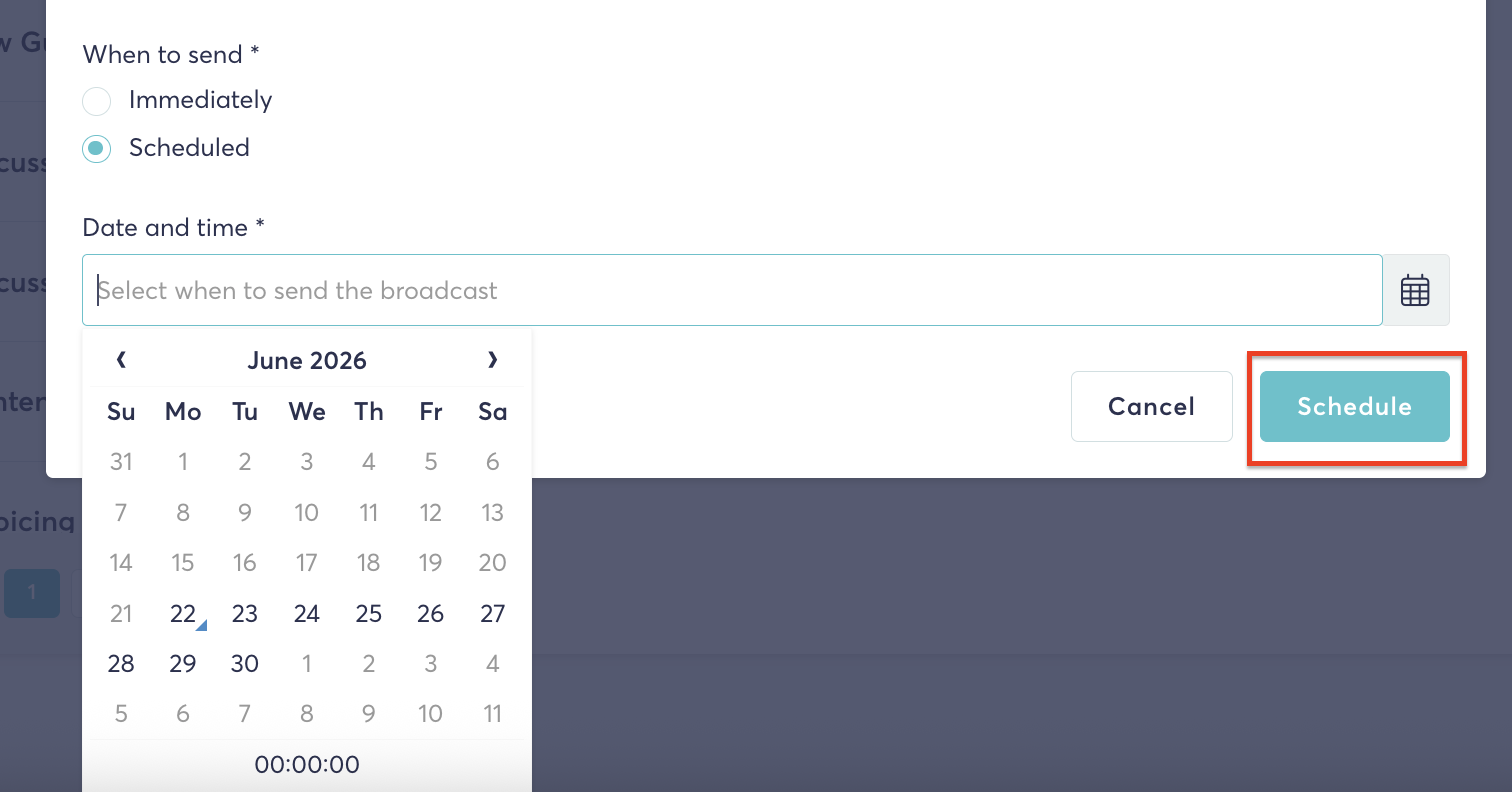
If you choose to schedule a broadcast:
- Set a future date and time for delivery
- The message will not be visible to recipients until that time
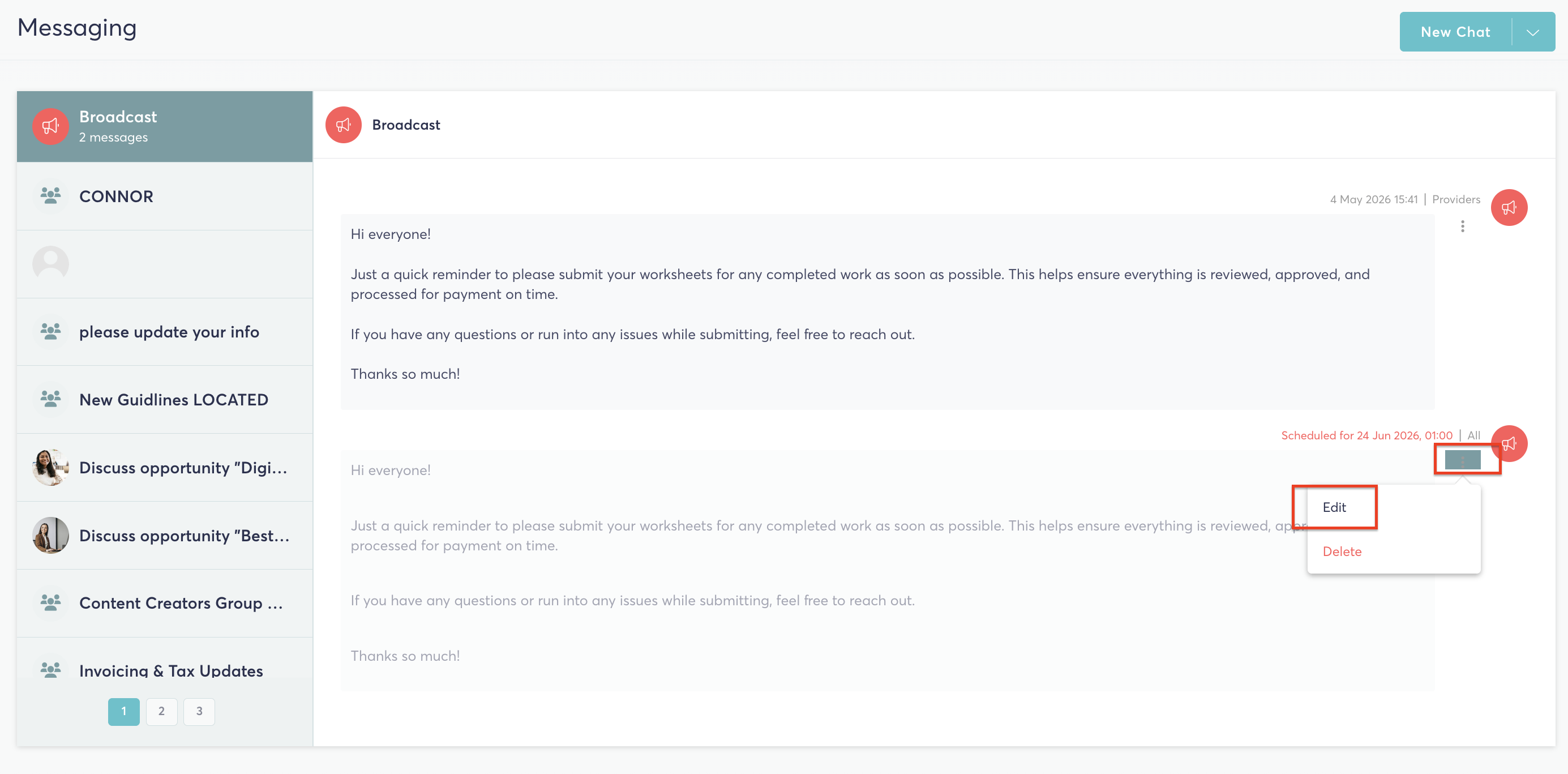
- Scheduled broadcasts can be edited or deleted at any time before they go live
Receiving a Broadcast Message
Recipients will see incoming broadcasts in the Broadcasts tab of their Messaging page.
If a user has unread broadcasts, they will receive a daily email reminder at 06:00 UTC until all broadcasts have been read.
Note: The sender is automatically marked as having read their own broadcast.
Editing a Broadcast
Broadcasts can only be edited while they are still scheduled. Once a broadcast has become visible to recipients, it can no longer be edited.
Deleting a Broadcast
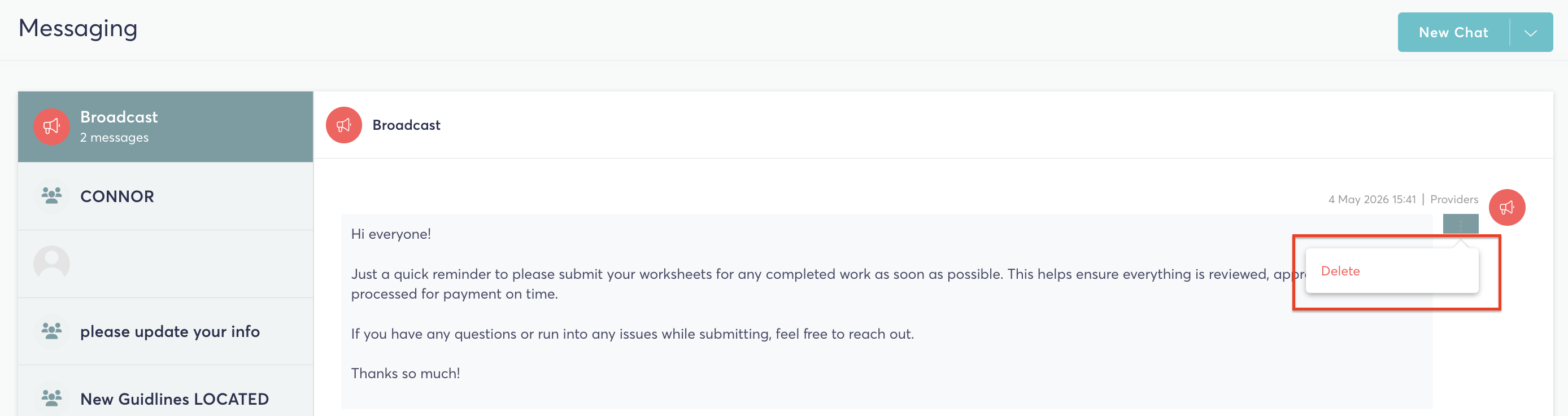
Broadcasts can be deleted at any time — whether scheduled or already live. Deleting a broadcast removes it from all recipients' Broadcasts tab immediately.
If you have any questions or need any support please reach out to support@talentdesk.io.
Thank you,
Team TalentDesk!