![kb_logo.svg]](https://www.talentdesk.io/hubfs/kb_logo.svg)
Before you start
1. The feature needs to be switched on for your organisation. Bulk contract imports aren't enabled by default. Your Customer Success Manager can activate it for you.
2. You need the right permission. Only managers with the Contract templates > Request signatures permission can bulk import contract signature requests.
3. eSign templates are a separate add-on. Once bulk contract imports are active, your Customer Success Manager can also enable bulk importing eSign contracts. Please note:
- Every eSign contract you import is sent through our eSign provider and is chargeable per contract. Your Customer Success Manager will confirm pricing before it's switched on.
- eSign imports are limited to 50 contracts per import. If you need to send more, split them across several CSV files.
- If this add-on isn't enabled, eSign templates won't be available to select during the import. Standard (non-eSign) templates can still be imported.
Note: New to importing on TalentDesk? Our Importing data via CSV on TalentDesk article covers how to import other data points on the platform.
How to bulk import contract signature requests
1. Go to Settings > Imports and click Import in the top right corner.
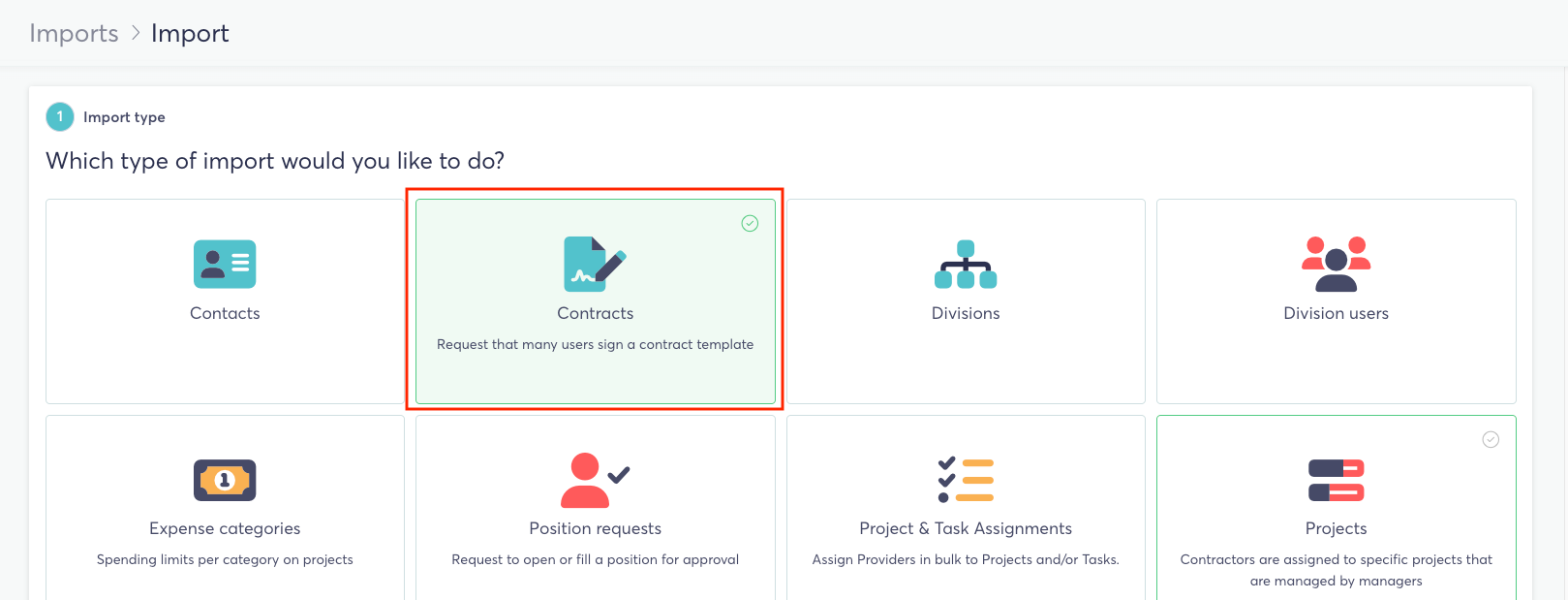
2. Import type: select Contracts ("Request that many users sign a contract template").
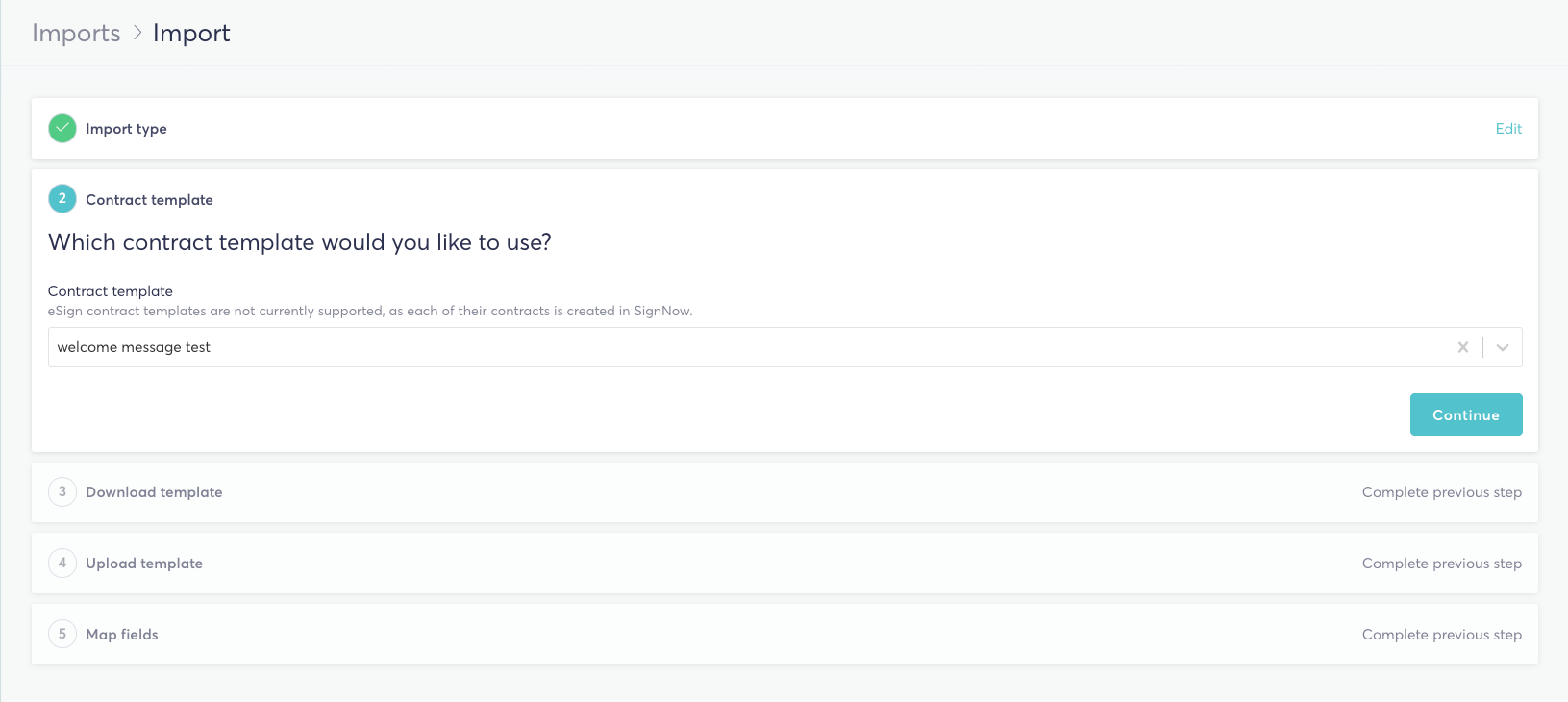
3. Contract template: choose the contract template you'd like your users to sign, then click Continue.
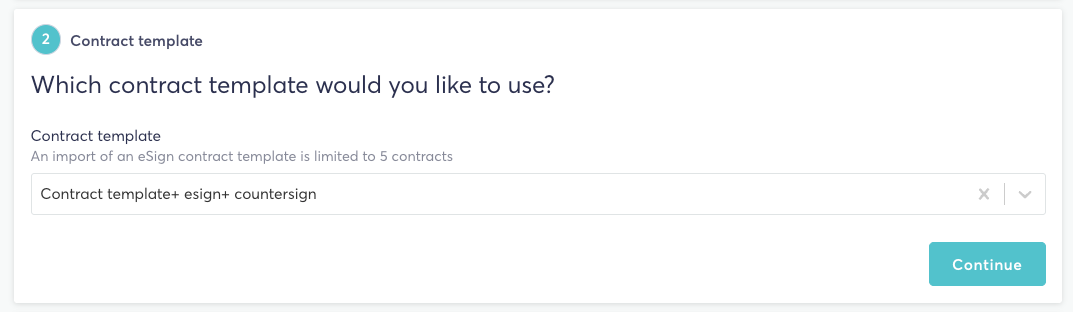
If you select an eSign template, you'll see a reminder of the row limit for eSign imports.
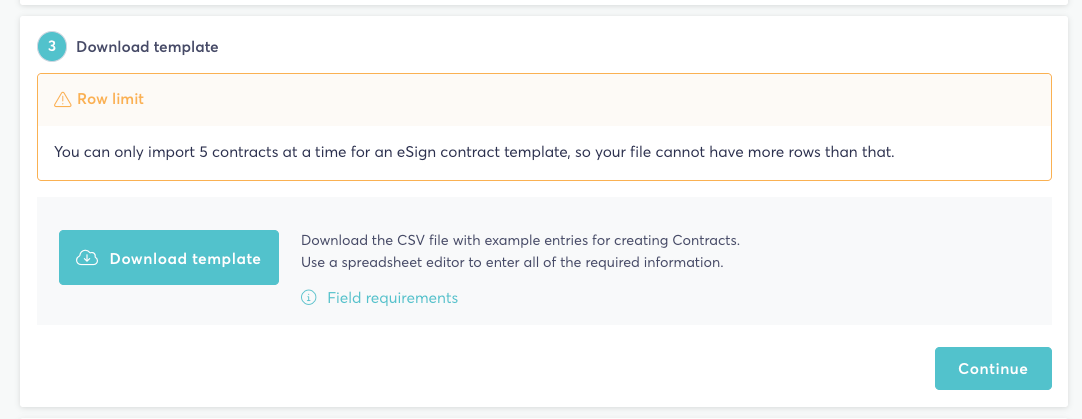
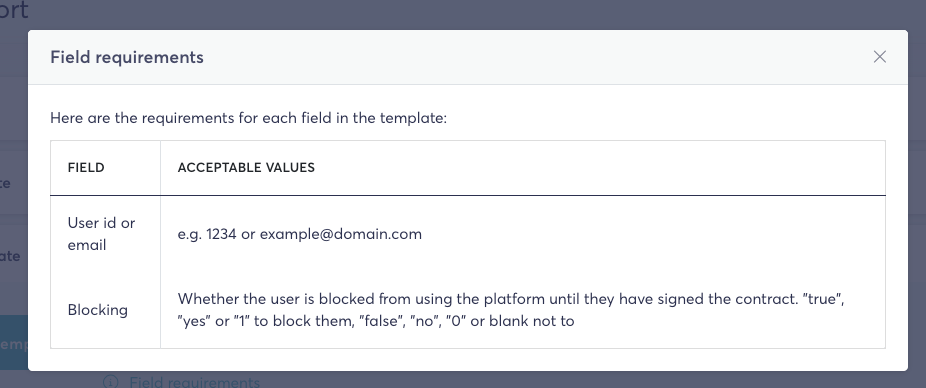
4. Download template: click Download template to get a CSV file with example entries. Click Field requirements to see what each column needs (see the table below). Fill in the file using a spreadsheet editor, then click Continue.
Note: The first row of the template contains example text. Replace it, and the rows below it, with your own data.
5. Upload template: upload your completed file and click Continue. The file name must end in .csv and the first row must contain the column headers.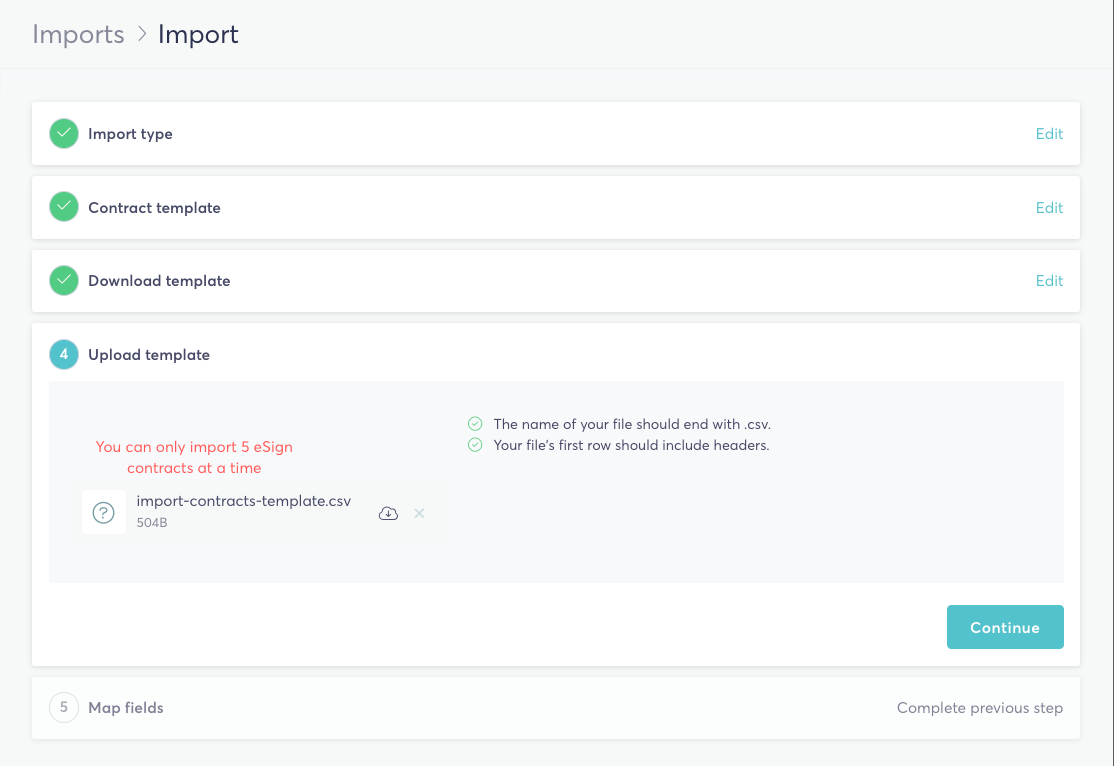
6. Map fields: match each column in your file to the corresponding TalentDesk field. If you've used the TalentDesk template, this is done for you automatically.
7. Click Import. Your import runs in the background, so you can carry on using TalentDesk while the signature requests are sent out.
Field requirements
Every contract import uses the two standard columns below. eSign templates add extra columns for any countersigners and fields set up on that template.
|
Field |
Applies to |
Acceptable values |
|---|---|---|
|
User ID or email |
All templates |
The user's TalentDesk ID or email address, e.g. 1234 or example@domain.com |
|
Blocking |
All templates |
Whether the user is blocked from using the platform until they've signed. "true", "yes" or "1" to block them; "false", "no", "0" or blank not to |
|
Countersigner email (e.g. Countersigner 1 email) |
eSign templates with countersigners |
The email address of the person who should countersign, e.g. example@domain.com. One column per countersigner |
|
Template fields (e.g. Label) |
eSign templates with fields |
The value to pre-fill in that field on the contract. Column names match the fields on your template |
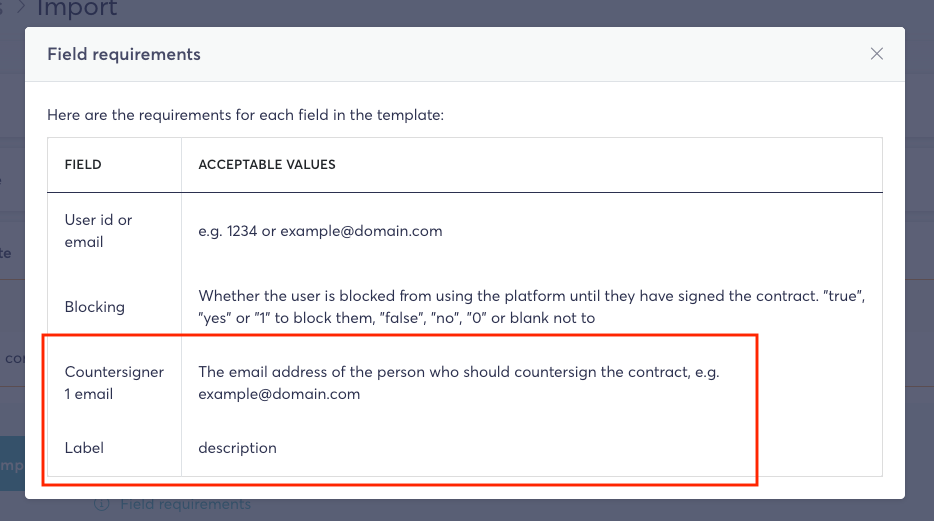
Here's how a completed row looks in the CSV template for an eSign contract:

FAQs
I can't see Contracts as an import type. Bulk contract imports need to be enabled for your organisation, and you need the Contract templates > Request signatures permission. Contact your Customer Success Manager to check both.
My eSign template isn't available to select. Bulk importing eSign contracts is a separate add-on. Ask your Customer Success Manager to enable it.
My upload says I have too many rows. eSign imports are limited to 50 contracts per file. Split your data across several CSV files and import each one separately.
What does "Blocking" do? A blocked user can't use TalentDesk until they've signed the contract. Use it for documents that must be signed before any work starts.
Please feel free to reach out to your Customer Success Manager or support@talentdesk.io if you have any questions.
Thank you, Team TalentDesk!