![kb_logo.svg]](https://www.talentdesk.io/hubfs/kb_logo.svg)
How It Works
Task Caps are set when a manager invites a provider to a task. The manager selects the provider's applicable rate and can then choose whether to place a cap on the assignment.
Step 1 — Invite a provider to a task
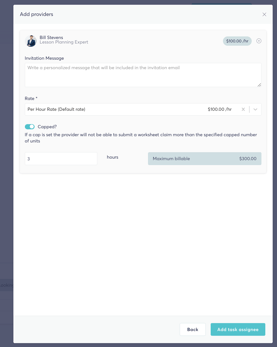
When inviting a provider to a task, select the provider and the rate that should apply to the assignment.
Managers can then enable the Capped option for the task assignment.
Step 2 — Set the task cap
Once the task has the cap toggled on, the manager enters the Maximum Billable quantity that the provider is able to submit against the task.
For example, if a provider is assigned a task with a $300 cap, they will not be able to submit service orders exceeding the available $300 limit.
Step 3 — Track cap utilization
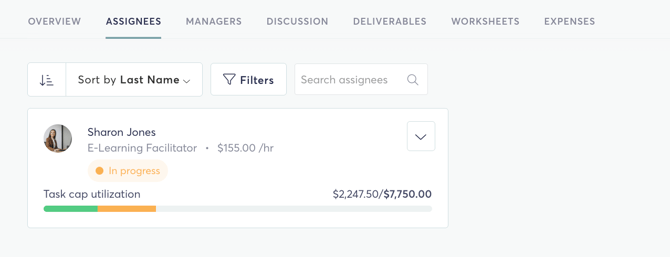
Once a cap has been set, TalentDesk tracks how much of the available cap has been used.
The task cap utilization indicator provides a real time view of the tasks spend:
- Green — Approved & Paid: Service orders that have been submitted and approved.
- Yellow — Submitted: Service orders that have been submitted but are still pending approval.
- Grey — Remaining: The remaining amount available under the task cap.
This gives managers an at-a-glance view of how much of a task's budget has been used and how much remains available.
Task Caps on the Project Dashboard
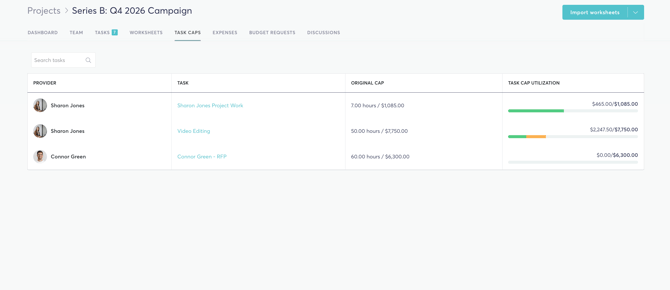
TalentDesk's Task Caps tab on the Project Dashboard provides a centralized view of all capped task assignments within a project.
Instead of reviewing individual tasks one at a time, managers can see their capped assignments in one place and quickly identify which tasks are approaching or have utilized their limits.
The dashboard displays key information including:
- Provider — The provider assigned to the task
- Task — The associated task title
- Original Cap — The current cap amount or quantity originally assigned
- Current Utilization — How much of the cap has been used
Things to Know
- Task Caps are configured when a provider is invited to a task.
- Managers select the provider's rate before setting the cap.
- Providers cannot submit service orders beyond the available capped amount.
- Task Cap utilization reflects both submitted and approved service orders.
- The Task Caps tab on the Project Dashboard provides centralized visibility across capped tasks within the project.
- The dashboard helps managers identify assignments that are closest to reaching their cap without manually reviewing each task.